
Adding a client
You create the account, we generate the password, you hand it over.
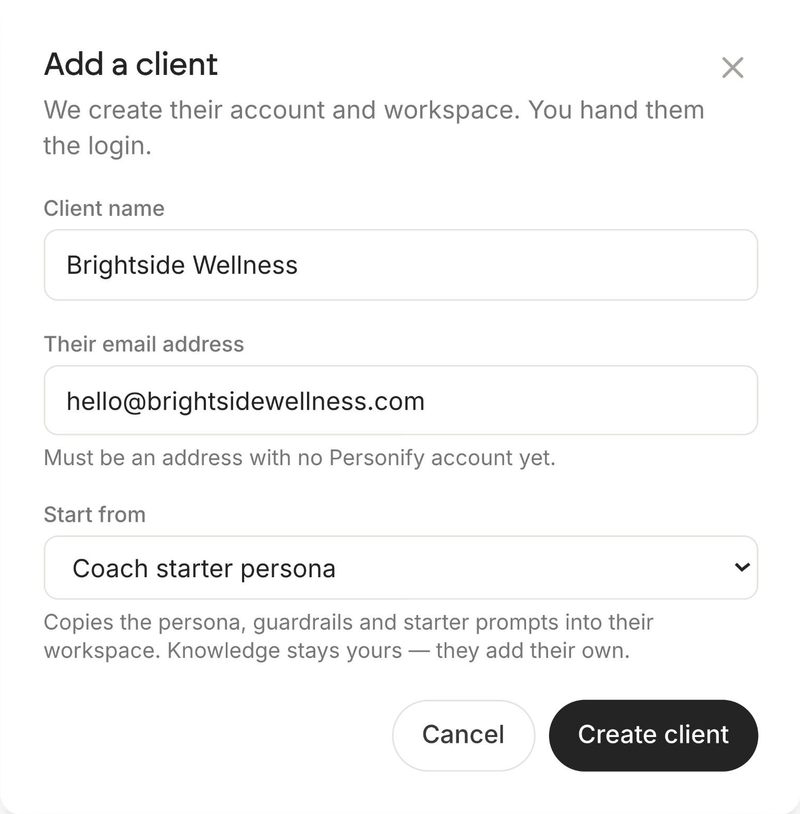
Go to Clients and press Add client. You need their name and their email address. You can also pick a template to start them from.
We create their account and their workspace, then show you a login to hand over. There is no invitation email and nothing for the client to accept.
Their email must be new
The address cannot already have an account. If it does, creation is refused. This is a deliberate safety rule: without it, typing an existing customer's address would hand you access to their workspace.
If your client already signed up on their own, they cannot be converted into a client workspace. Use a different address, or have them create one.
The password is generated for you, shown once, and never stored anywhere. Copy it before you close the dialog. If it is lost, the client has to reset it from the sign-in page.
What the client gets
- An account that is already active. No confirmation email is sent, so there is nothing for them to click.
- The paid product, with no message cap they can hit. You are paying for the seat, so they are not put on a free plan that stops answering.
- Your branding, applied at the moment they are created.
- A dashboard with billing, referrals and our support removed.
Clone names are capped at 30 characters. A client started from a template gets a clone named after them, so a longer client name is shortened to fit: "Clearpath Clinical Staffing Group" becomes a clone called "Clearpath Clinical Staffing Gr". Nothing fails and nothing else is lost. Rename it inside the client if it matters. Template names have no limit and your clients never see them.
If the template did not copy
Occasionally the account is created but the template copy fails. You will see the credentials and a warning saying so. The account is the part that cannot be redone, so it is never thrown away. Open the client and apply the template again from the Templates page.