
Keep a clone in sync with a folder
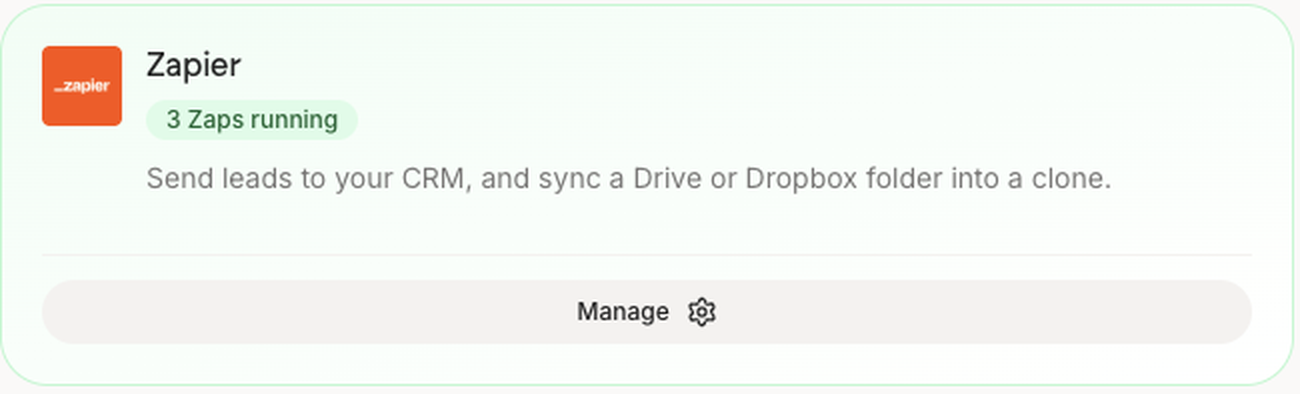
Connect a Google Drive, Dropbox or OneDrive folder through Zapier so new and edited files reach your clone on their own.
If your coaching material lives in a cloud folder, Zapier can hand every new file to your clone. Nothing to code, and it works on every Personify plan, Free included.
Set it up
Create a Personify key.
- In Personify, open Integrations, then Zapier, and create a key. It is shown once, so copy it
Start a Zap with your folder.
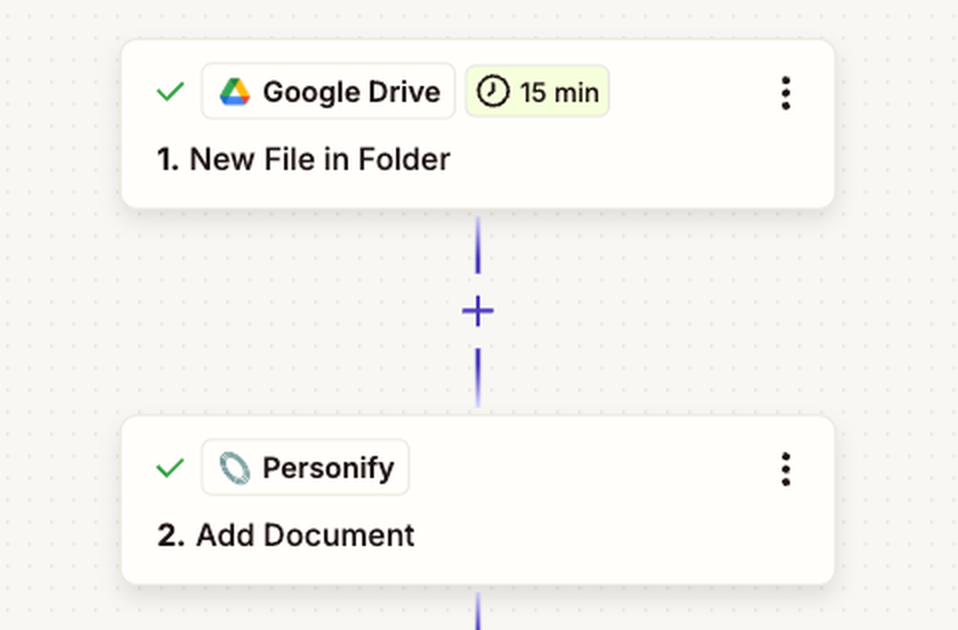
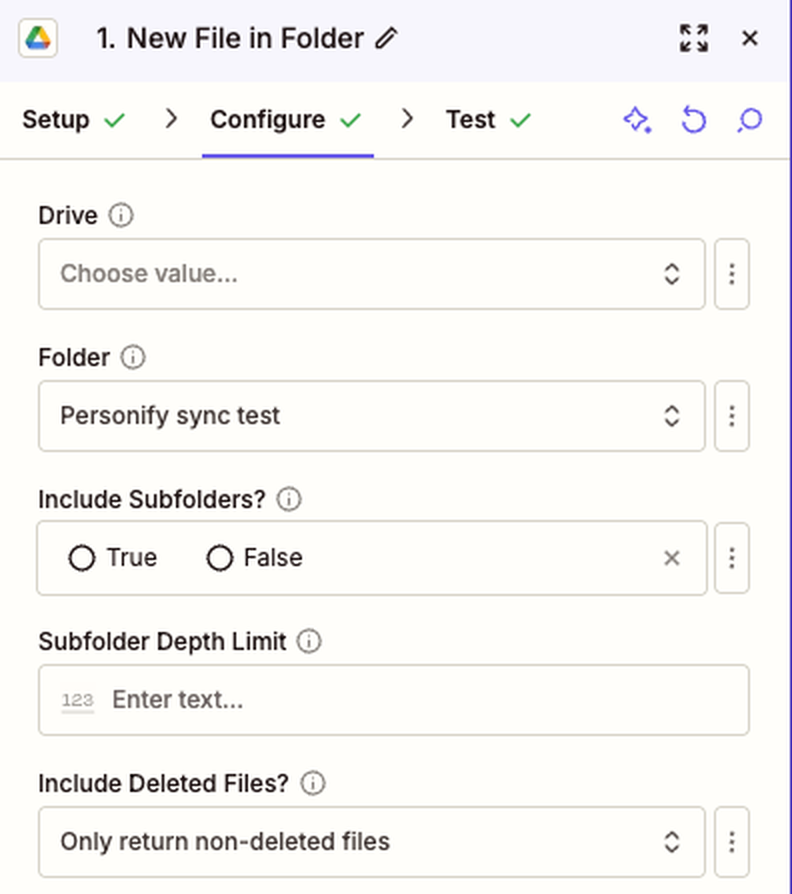
- In Zapier, press Create. Choose Google Drive, Dropbox or OneDrive, then the New File in Folder trigger, and pick the folder
Add Personify as the action.
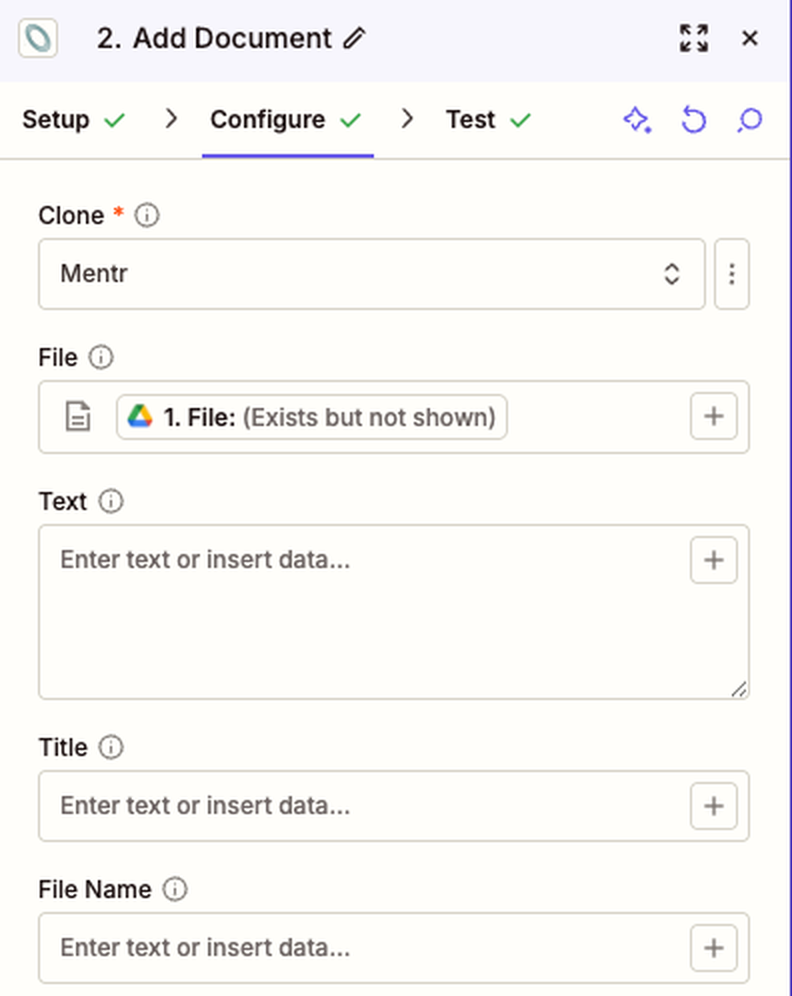
- Add a step, search for Personify and choose Add Document. Paste your key when Zapier asks to connect, pick the clone, and map File from the folder step
Test it and turn it on.
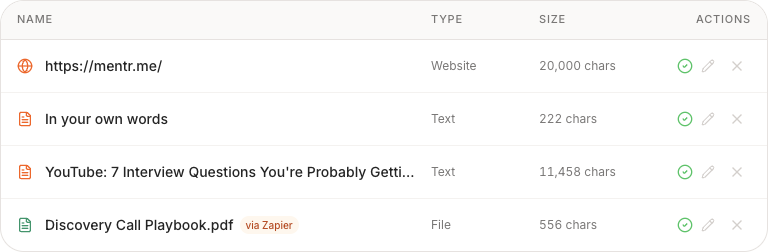
- Test the step, then publish the Zap. The file appears on your clone's Knowledge step tagged via Zapier
What to expect
- Zapier checks the folder every 15 minutes on its free plan, and more often on paid plans
- Your clone can answer from a new file within about 15 minutes of it arriving
- A file with the same name replaces the older copy, so an edited file updates your clone instead of adding a second version
- Files follow the same rules as uploading in the app: PDF, Word, PowerPoint, EPUB and text files, up to 10MB each
- If your clone is running out of room, a long file is trimmed to what fits and the file says so
Catching edits too
Google Drive's New File in Folder only fires for new files. To pick up changes to files already in the folder, make a second Zap with the Updated File trigger and the same Personify step.
It has to be a cloud folder. Personify cannot watch a folder on your own computer, so move it into Google Drive, Dropbox or OneDrive first.
Plain text works as well
The Add Document action also takes plain text instead of a file. That suits a Google Doc body, a form answer or a note from another app.