
Understanding Contacts
Who ends up in the list, what each column means, and how to get them out.
Contacts lists everyone who gave you their details while talking to one of your clones. It only fills up if you switched on email capture on the Visitors tab.
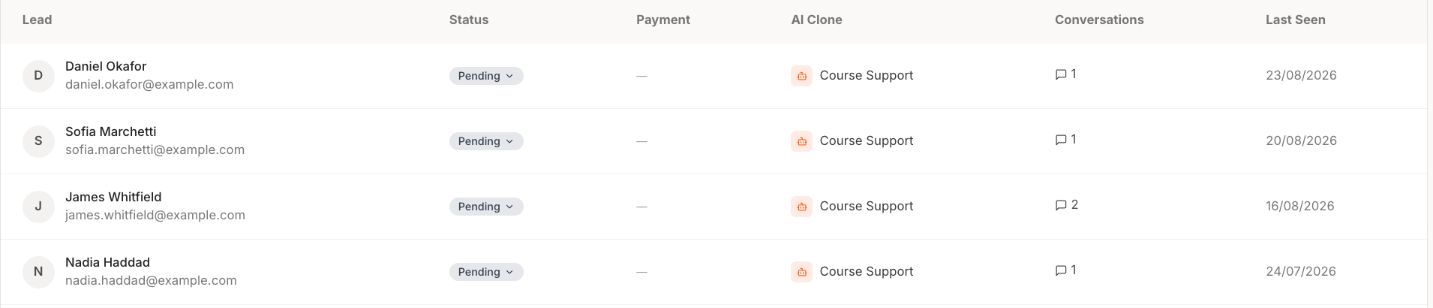
| Column | Meaning |
|---|---|
| Lead | Their name and email, where given |
| Status | Where you have got to with them. Editable from the dropdown |
| Payment | Whether they have paid, on a clone that charges for access |
| AI Clone | Which of your clones they spoke to |
| Conversations | How many separate chats they have had |
| Last Seen | When they last spoke to it |
Rows with an email and no name
Completely normal. Whether you get a name depends on what you asked for on the Visitors tab. An email with no name is still a real contact and still worth following up.
Finding someone

Search by name, email or clone. The three dropdowns filter by status, by payment, and by which clone they spoke to. If you run several clones, filtering by clone tells you which placement is producing people worth talking to.
Getting the list out
Export in the top right downloads the list, for your email tool or CRM.
People who never appear here
Most visitors. They chatted, they skipped the email box, and they left. Their conversations are still under Conversations with the full transcript, which is often more useful than the address would have been.
These are real people's details. Mention the AI chat in your privacy policy, do not ask for more than you need, and delete a contact when someone asks you to.